
Payments
A charge is money owed; a payment is money handed over; a balance is just the difference, computed fresh every time rather than stored anywhere that could drift. Nothing here is ever deleted — a mistaken payment is reversed with a reason, leaving both the mistake and its correction on the record.
Screens below are from a demo school with real recorded payments. Nothing was confirmed or reversed to make this guide — every action shown is still sitting exactly as captured.
Who can do what
Every officer can watch the numbers; only the Burser can actually move them. Not even the Head Teacher can record a payment — accepting money on the school's behalf is the Burser's alone, while raising a charge (deciding something is owed in the first place) is a billing decision the Head Teacher shares.
A class teacher gets one more, narrower right not shown above: read-only visibility into the accounts of students in their own arm — no financial columns, no ability to record or reconcile anything.
Settlement & platform account (settings)
Two settings pages sit behind the whole payments picture. Settlement account (proprietor-only to edit) is where Paystack pays the school out to — a bank and account number, verified through Paystack's own resolve API before it can be saved, so a typo never sends money to the wrong account. It isn't screenshotted here since a real school's bank details, unlike everything else in these guides, aren't something to publish even from a demo.
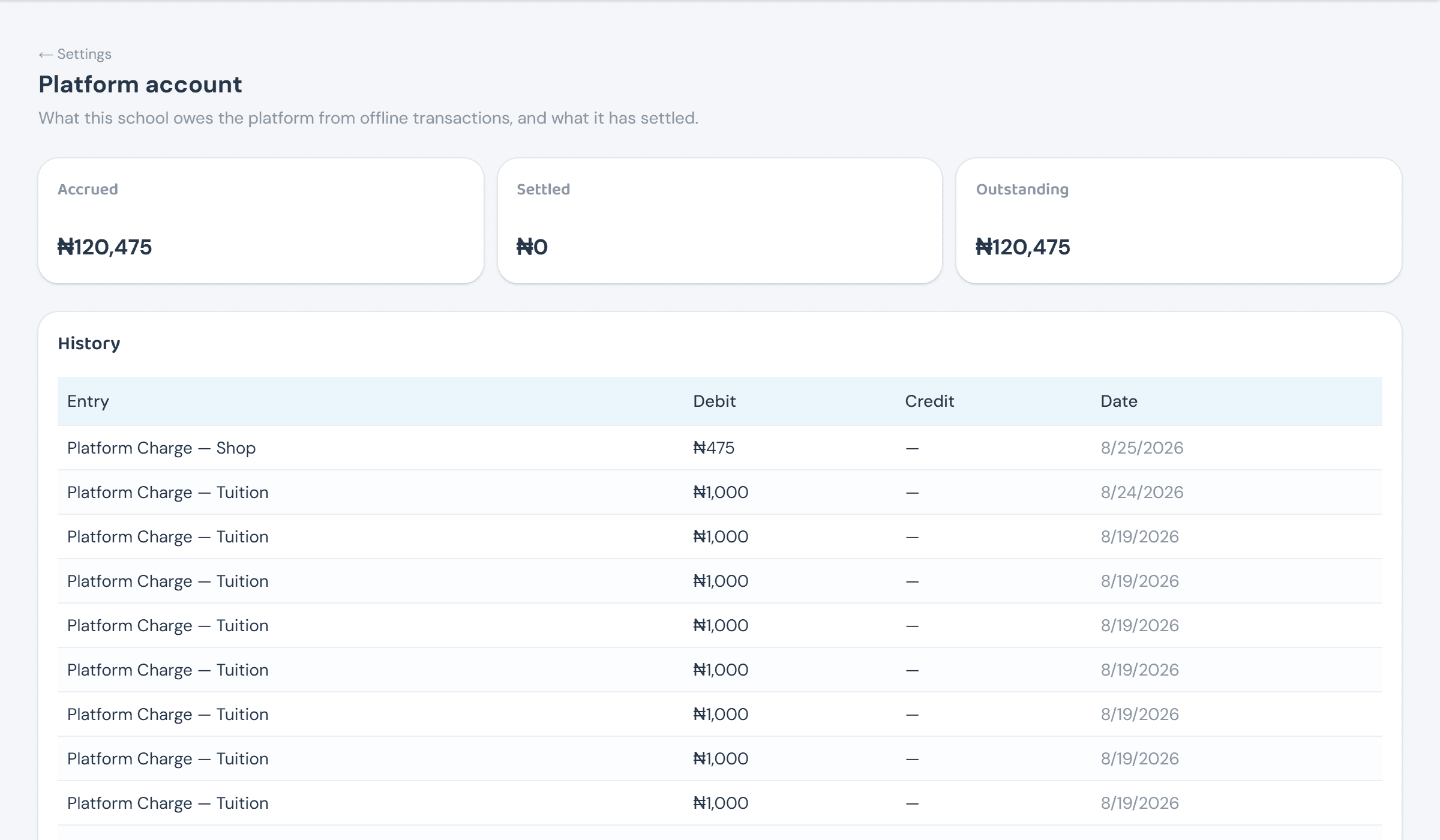
Platform account is the other half — what the school owes the platform from offline transactions specifically. Online payments never appear here; the platform's cut of those is deducted automatically at payment time, not accrued as a debt to settle later.
Recording & reconciling offline payments
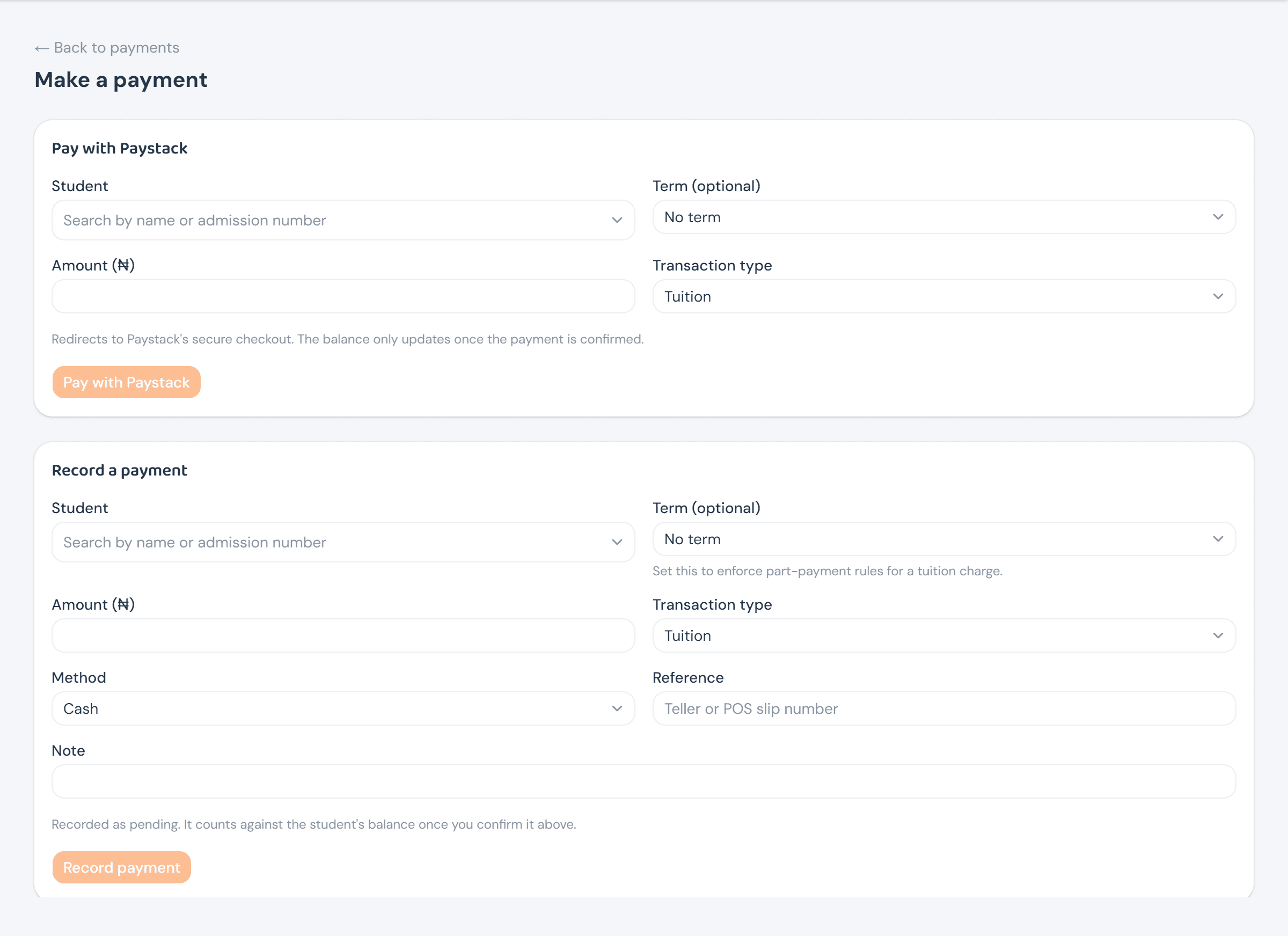
Make a payment is the Burser's console, two forms side by side — one for cash, POS, or bank transfer, one for Paystack. Recording an offline payment doesn't touch the balance yet: it lands pending, because money on the desk and money actually in the account are two different facts, confirmed by two different acts.
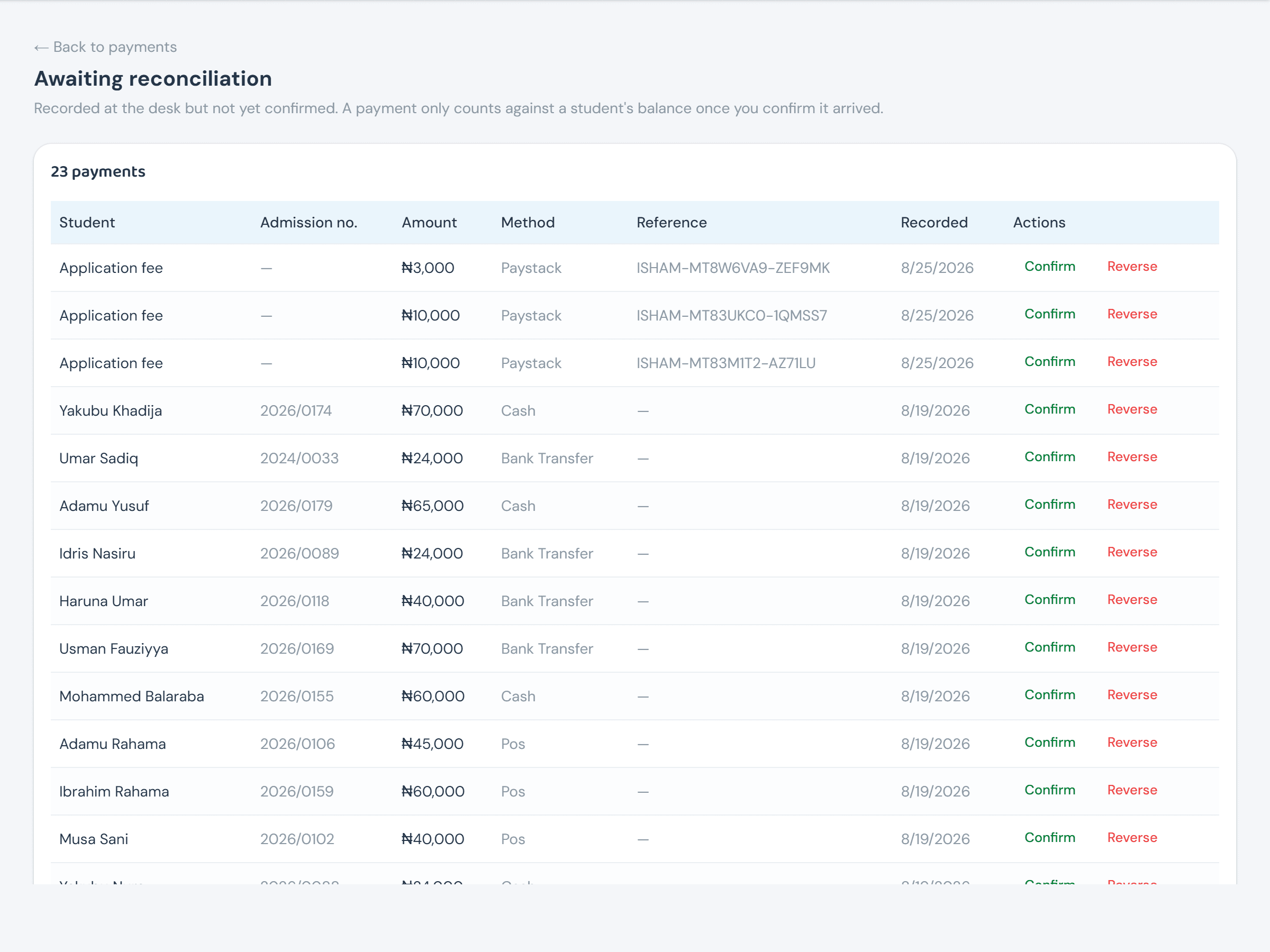
Every payment recorded this way queues up in Awaiting reconciliation until the Burser clicks Confirm — the moment the balance actually moves — or Reverse, which requires typing a reason and never deletes the row.
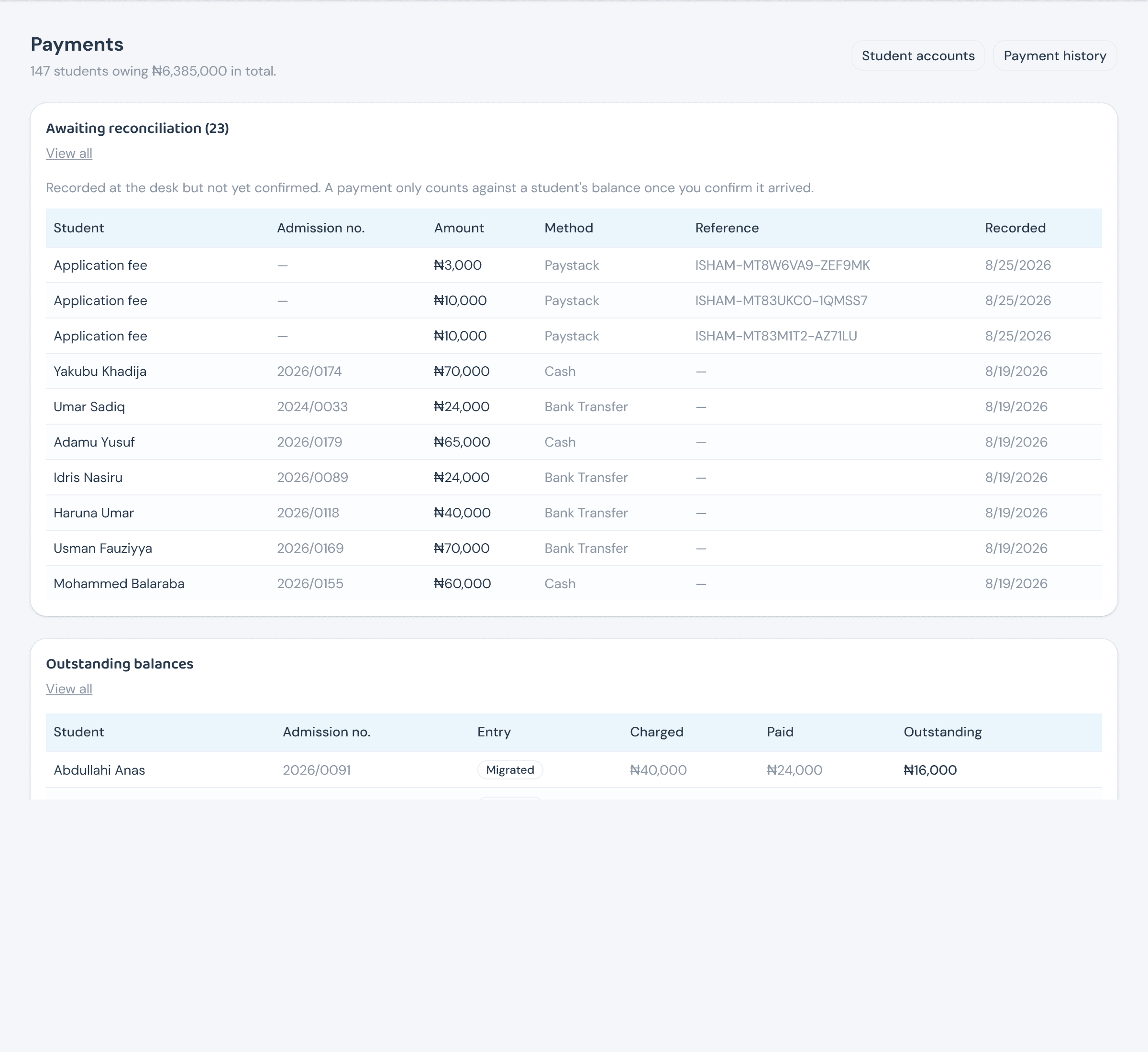
Every other role sees the same queue and the same Outstanding balances list read-only from the main Payments console — full financial columns for an officer, or their own arm's accounts with no numbers at all for a class teacher.
Paying online with Paystack
A Paystack payment starts the same way whether the payer is a parent checking out for themselves or the Burser initiating it on their behalf: fill the same student/term/amount/type fields, and the browser redirects straight to Paystack's hosted checkout — there's no method field, since it's always Paystack.
Nobody clicks Confirm on an online payment. It starts pending like any other, but confirmation happens automatically — either Paystack's signed webhook, or the payer landing back on the app's return page, which double-checks the same way as a fallback. The same online path pays an admission application fee, from a Pay application fee button on the applicant's own view or the Head Teacher's Pay ₦X to accept when approving one — see Admissions → Reviewing & deciding applications.