
Timetable
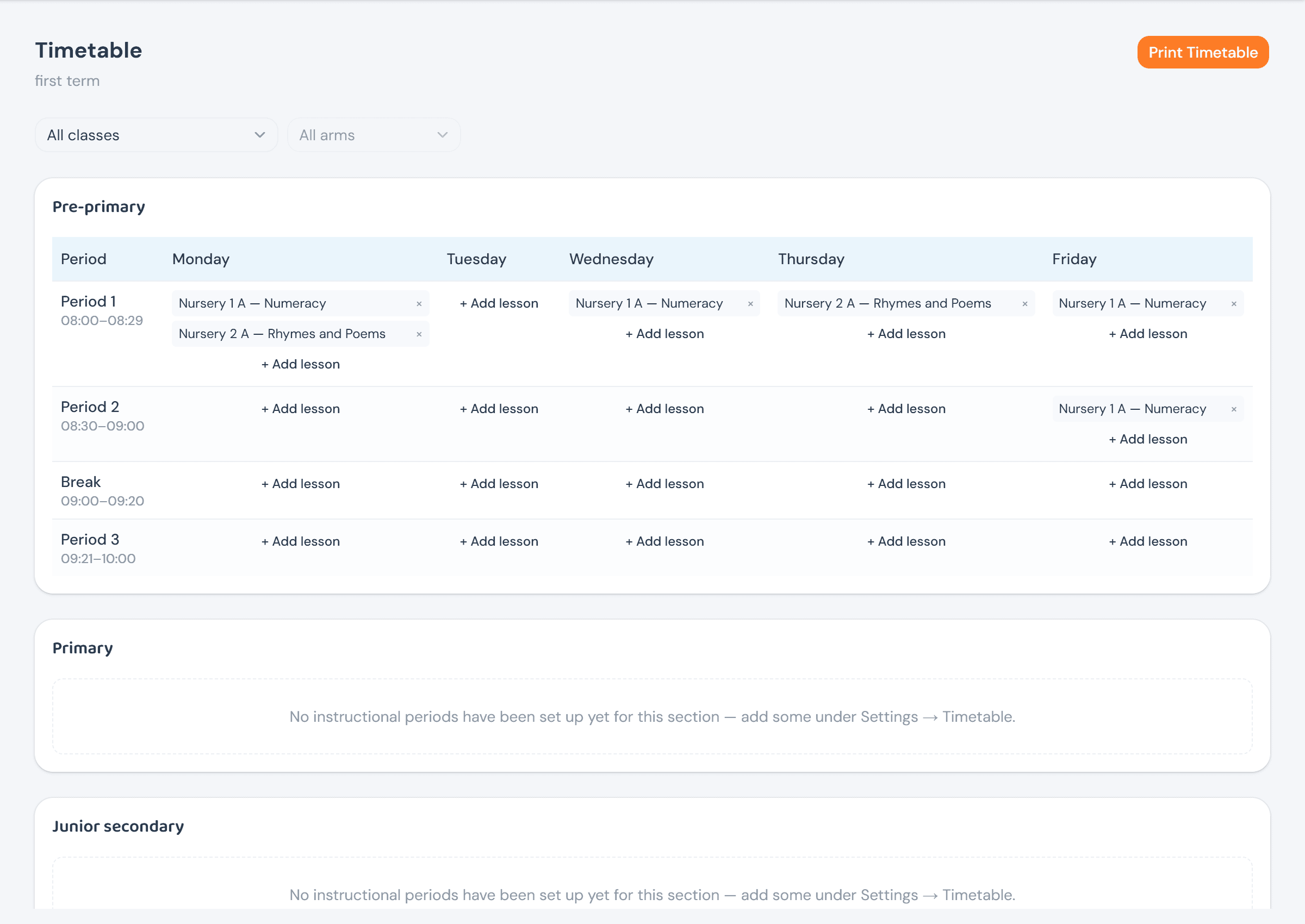
Every education level gets its own weekly board, built from the period template set under Settings → Daily periods — a lesson is added straight onto the grid, one cell at a time, no separate scheduling tool.
Screens below are from a demo school with a real, partly-built Pre-primary timetable. Opening the Add lesson dialog is shown; nothing was actually added to make this guide.
Who can do what
Staffing a day's schedule is day-to-day running of the school, the same reasoning behind who assigns a class teacher — so the proprietor can see the timetable but never edit it. Every teacher can see it too, since it's their own week as much as anyone's.
The weekly board
A section with no periods set up says so plainly rather than showing an empty grid — Primary, Junior and Senior Secondary below have none yet, while Pre-primary already has a real schedule taking shape. Break and assembly periods appear in the grid too, but can never hold a lesson — only instructional periods can.
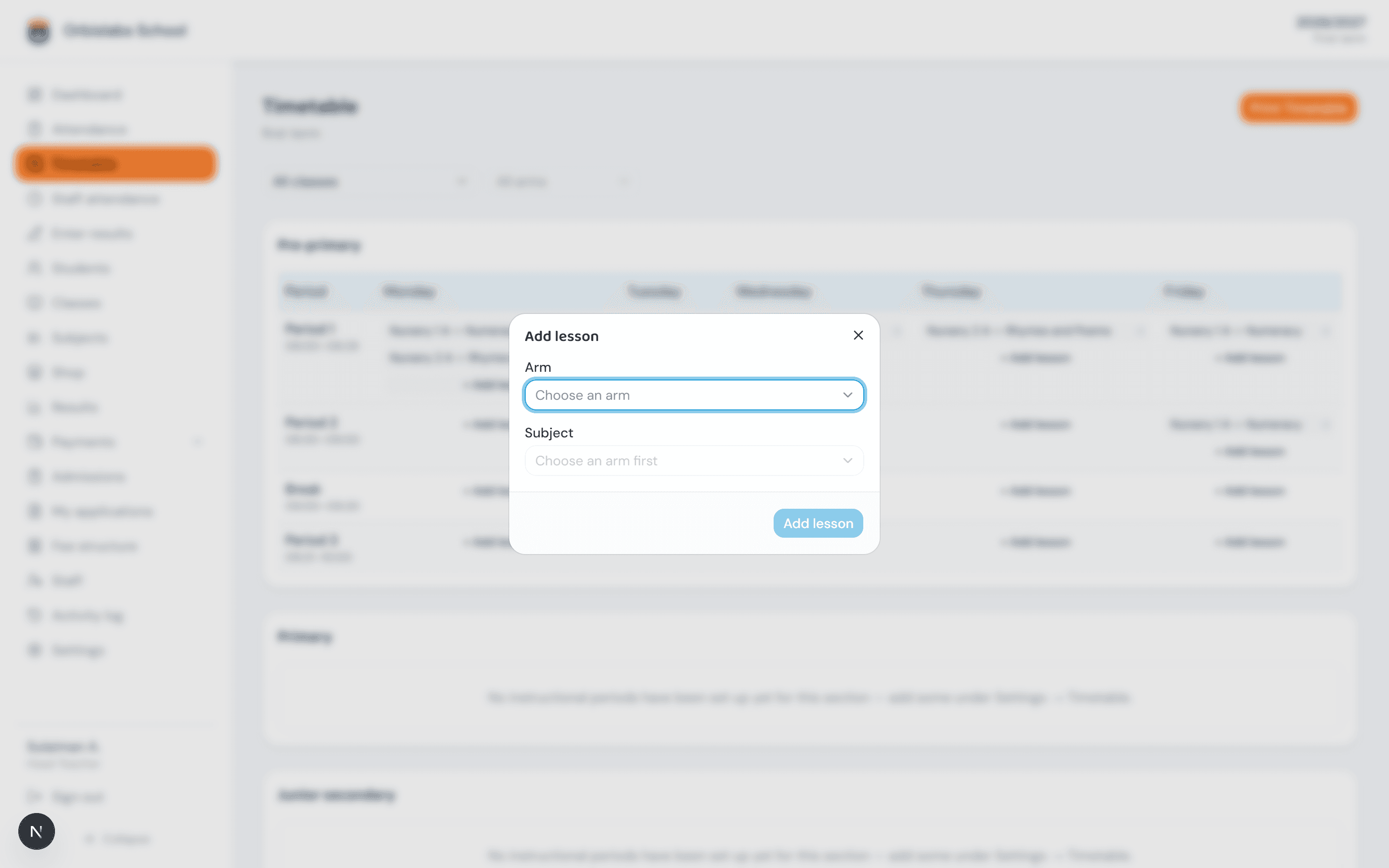
+ Add lesson opens a small dialog right where you clicked: pick the arm, then a subject — narrowed to that arm's own eligible teaching assignments, so the list is always short and never lets a lesson land on the wrong class.
Removing a lesson is a single × on its chip, no confirmation — the same reasoning as revoking a staff invite: undone in one click either way, so nothing about it needs a safety prompt.
Checking for conflicts
A teacher can't actually be double-booked in the first place — the server checks for an overlapping slot for that staff member the moment a lesson is added and rejects it outright. The Check for conflicts button beneath the boards is a second look anyway: a purely client-side scan across every section's already-loaded schedule, reporting either No conflicts found or exactly which staff member is double-booked, where, and with what. Since the hard block already prevents the ordinary case, this mainly catches anything scheduled before that rule existed, or edited outside the normal flow.
Exporting the timetable
Print Timetable — visible in the page header above — builds a landscape PDF entirely from the same structured data behind the board, not a screenshot of the page, so it renders identically regardless of a school's own brand color. It includes a teacher's own weekly schedule first if they have one, then one table per education level, and honors whatever class/arm filter is currently applied — anyone who can view the timetable can export it, including a teacher exporting just their own week.