Staff management
Every account on a school's Pensbase — other than the proprietor themselves — is created through an invitation, and who can send that invitation depends on the role being handed out. This guide walks through inviting, resending, deactivating, and assigning staff, and who sees which buttons.
Screens below are from a demo school with sample data. Email addresses are hidden.
Who can do what
Officer below means a Head Teacher or ICT Admin — the two roles run day-to-day operations and share the same staff permissions. The proprietor appoints the school's officers; officers bring on teachers.
Inviting staff
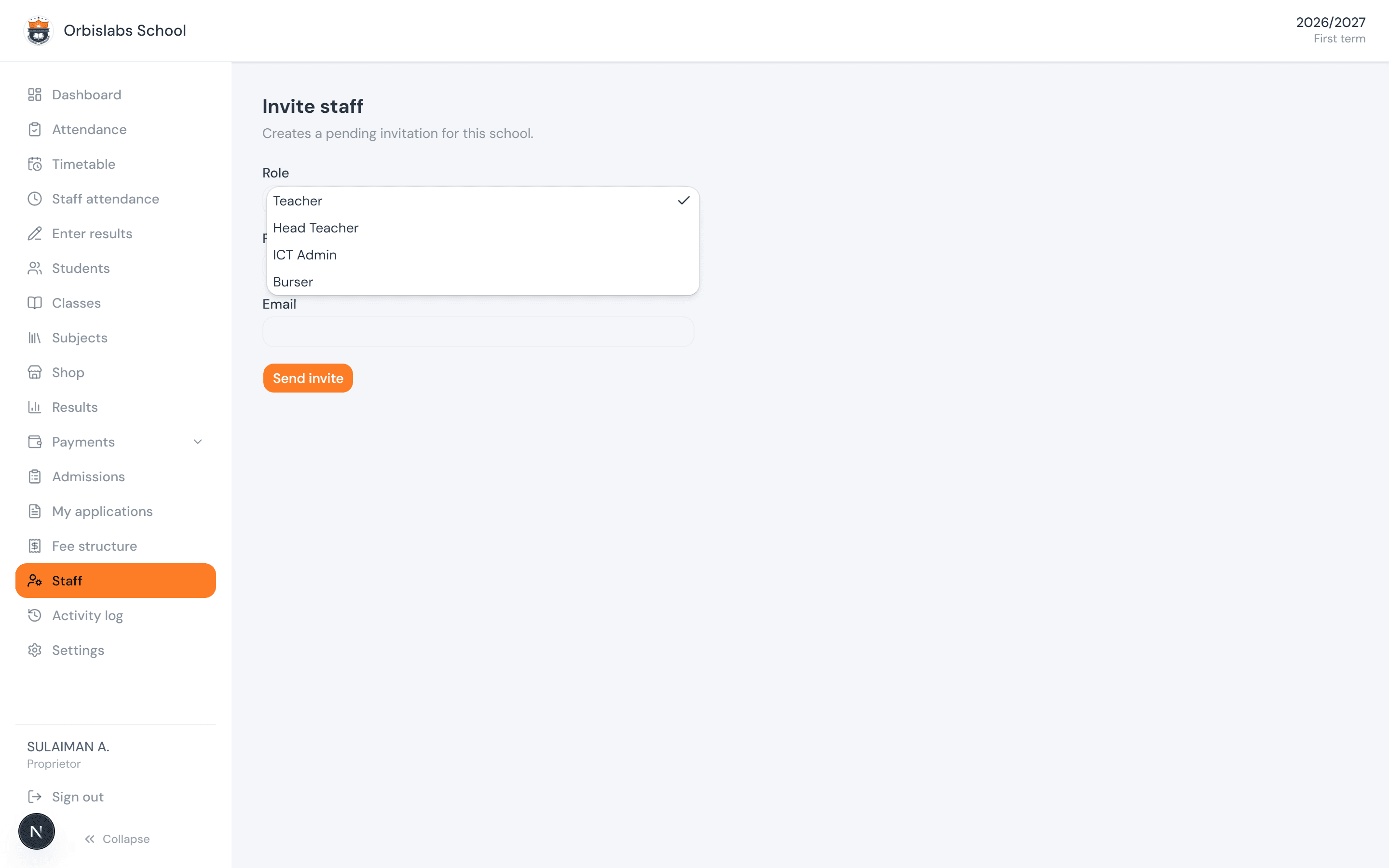
From Staff → Invite Staff, the proprietor sees all four roles a school ever hands out. Only the proprietor can appoint a Head Teacher, ICT Admin, or Burser — the officers who run finance and records can't create another officer, or grant themselves finance access through a Burser account.
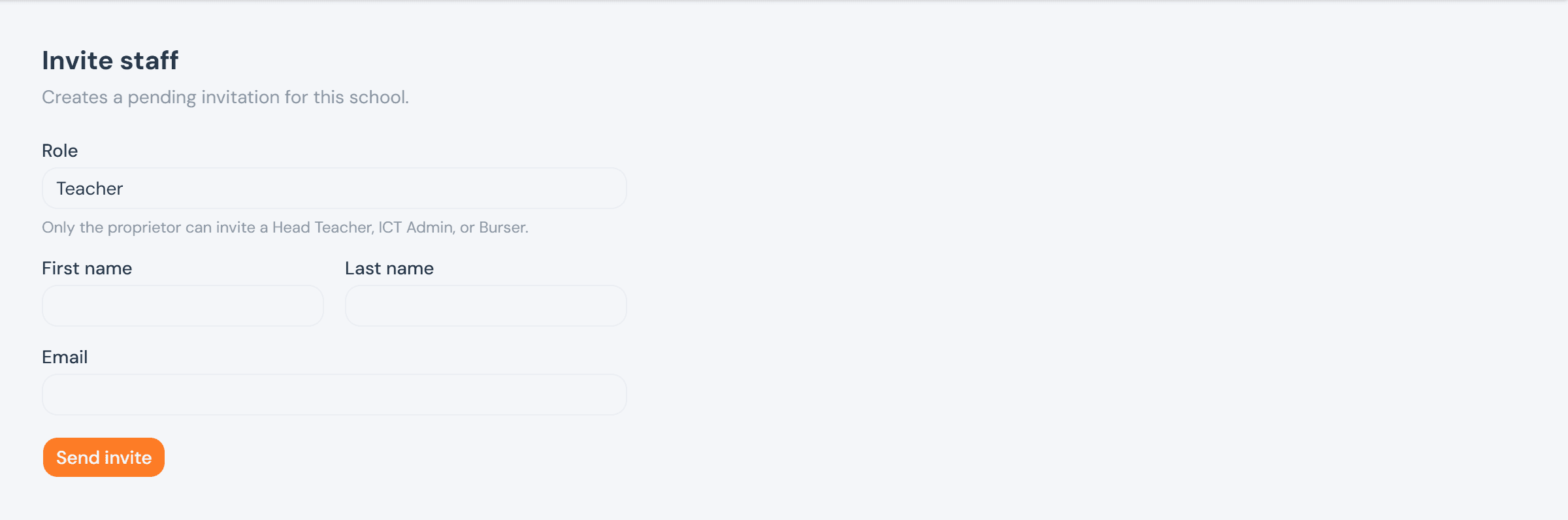
A Head Teacher or ICT Admin opening the same form only ever invites a Teacher — the Role field is a locked, read-only value rather than a dropdown, with a note explaining why.
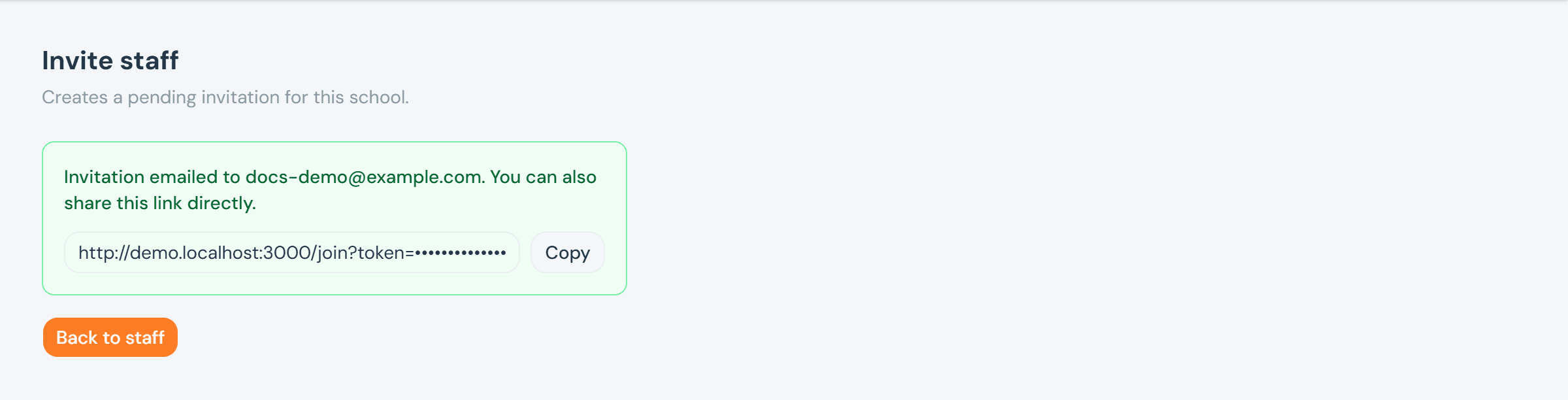
Sending an invite creates a pending record and emails the link. If the email doesn't land, the same link is always shown on screen to copy and send another way — the token portion is blotted out below since that link is, on its own, enough to claim the account it was created for.
The staff roster
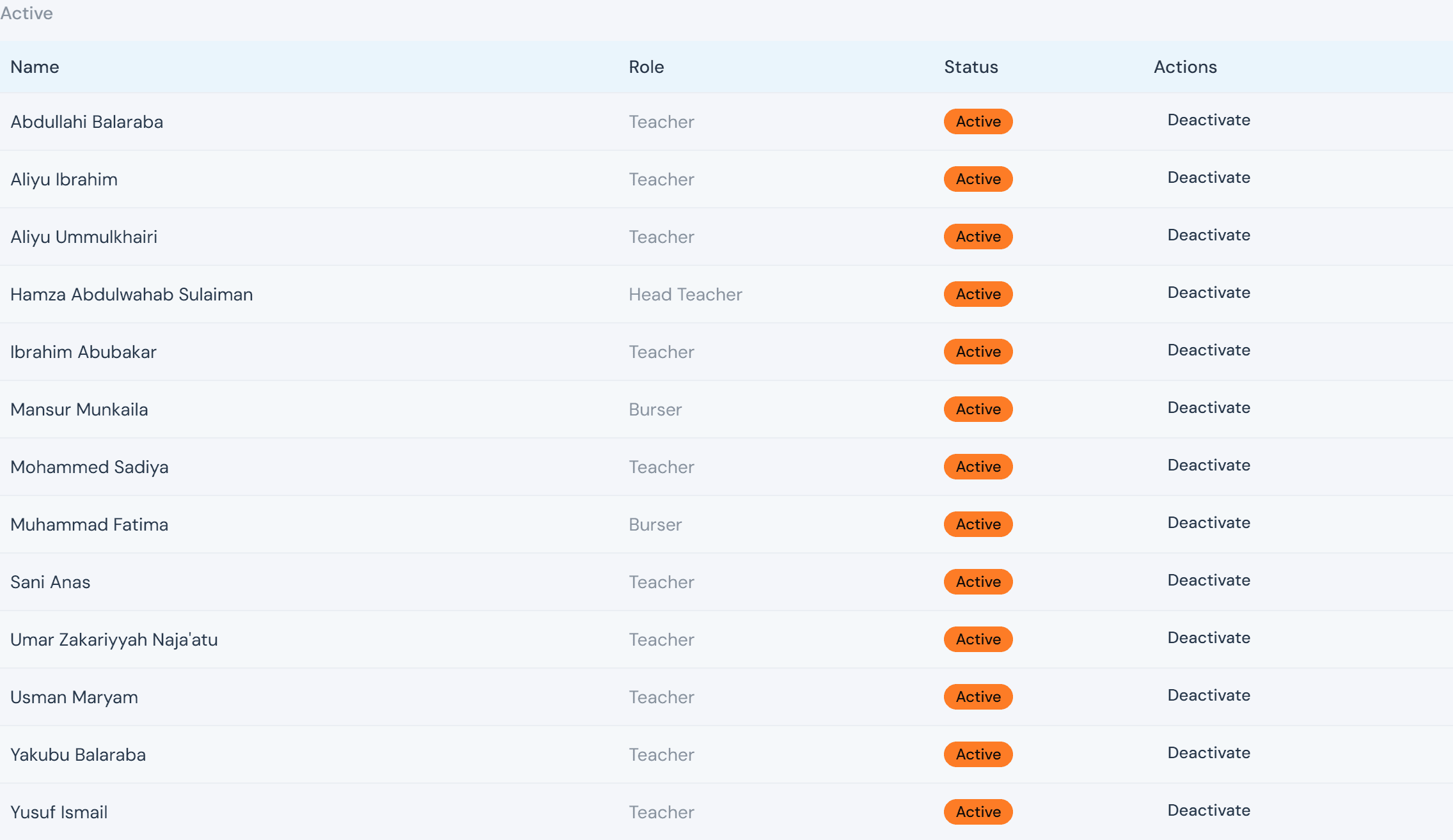
Staff lists everyone with a role of Teacher, Head Teacher, ICT Admin, or Burser, with a Deactivate button on each active row. That button is gated exactly like the invite that created the account: a Head Teacher can suspend a Teacher, but only the proprietor can suspend a Head Teacher, ICT Admin, or Burser. Nobody can deactivate themselves, and the proprietor can't be deactivated at all.
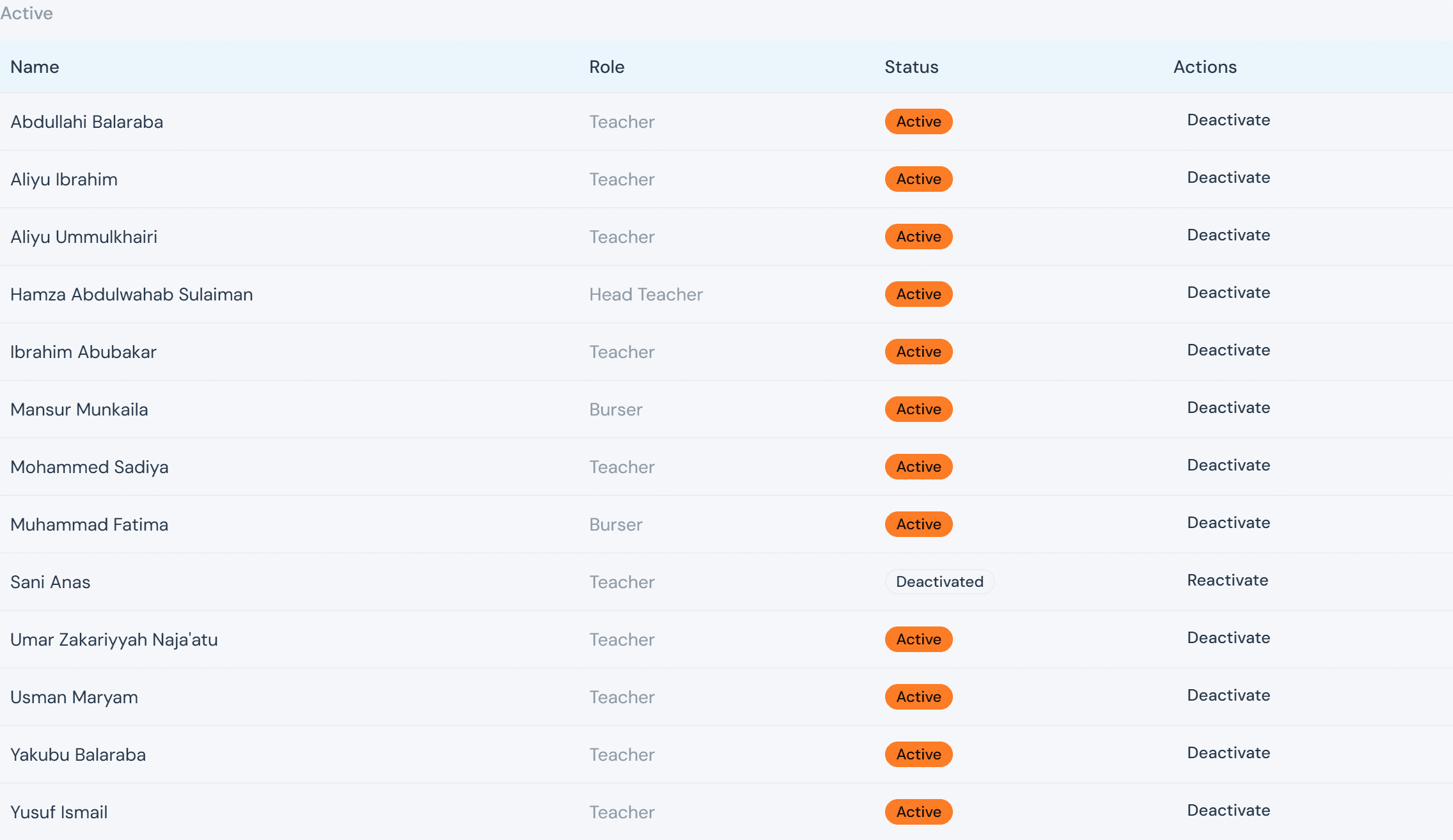
Deactivating doesn't delete anything — it just blocks that account's login, and Reactivate reverses it at any time. Both are one click, logged to the school's activity feed either way.
Pending invitations
An invitation that hasn't been accepted shows up here until it expires. Resend is gated the same way as sending the original invite — re-issuing a link grants the role as surely as creating it. Revoke is different: withdrawing an invite grants nothing, so any staff manager can do it, not just whoever could have sent it.

Revoking removes the row outright — there's no confirmation step, since withdrawing an invite is always safe to undo by just sending a fresh one.

Resending swaps in a brand-new link and expiry for that same row, shown inline the same way a fresh invite is.

Accepting an invitation
Opening an invite link lands on /join, pre-filled with the email, first name, and last name the invite was created with. There's nothing to look up or type beyond a password — this is the entire path from invite link to a working login, for every role except the proprietor (who instead completes onboarding).
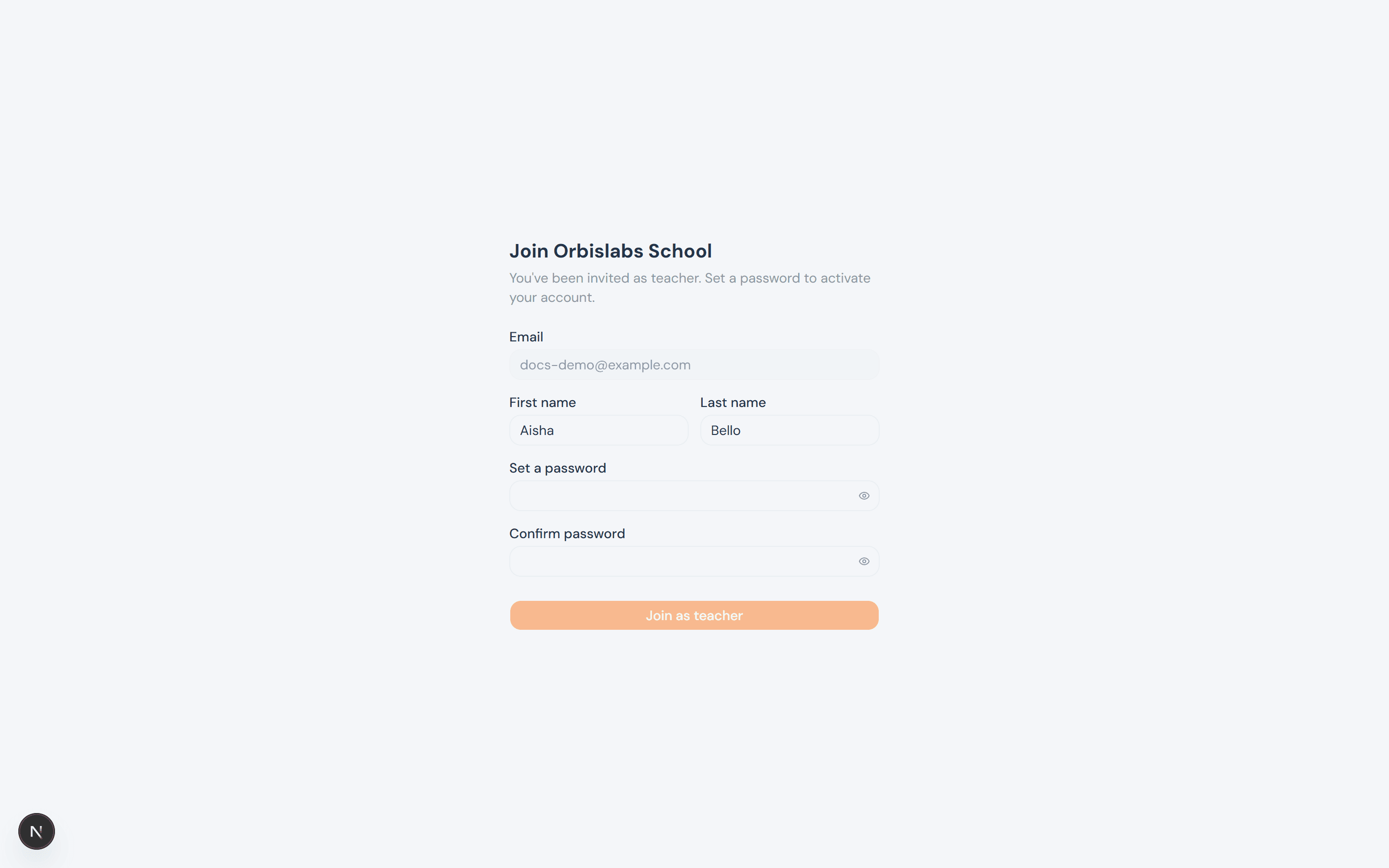
The password field scores strength live as you type (the same rule the server enforces, so nothing passes client-side and fails on submit) and Confirm password has to match before Join as teacher will do anything.
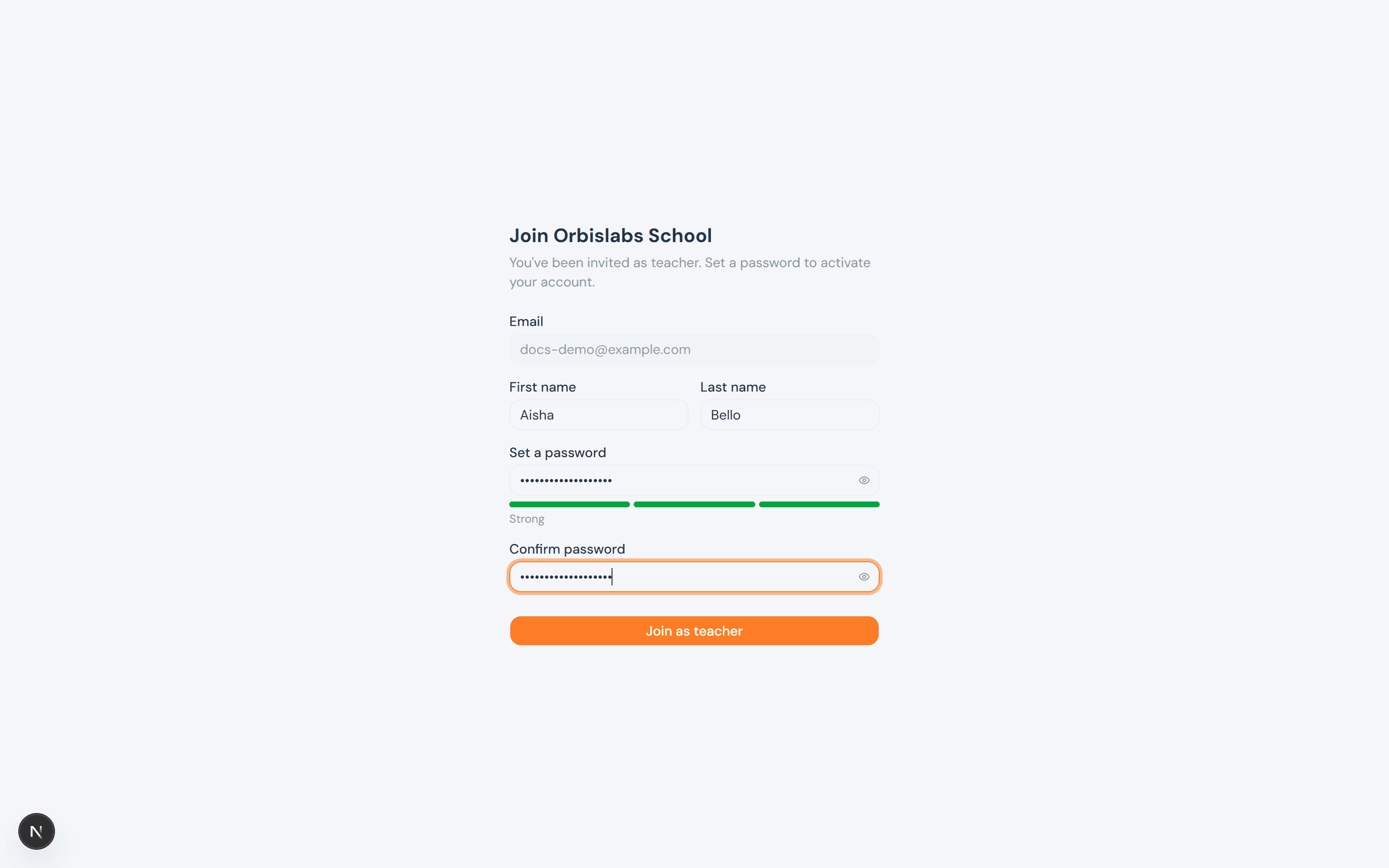
Submitting creates the account, signs it in immediately, and drops the new user straight onto their dashboard — no separate login step after joining.

Bulk-uploading teachers
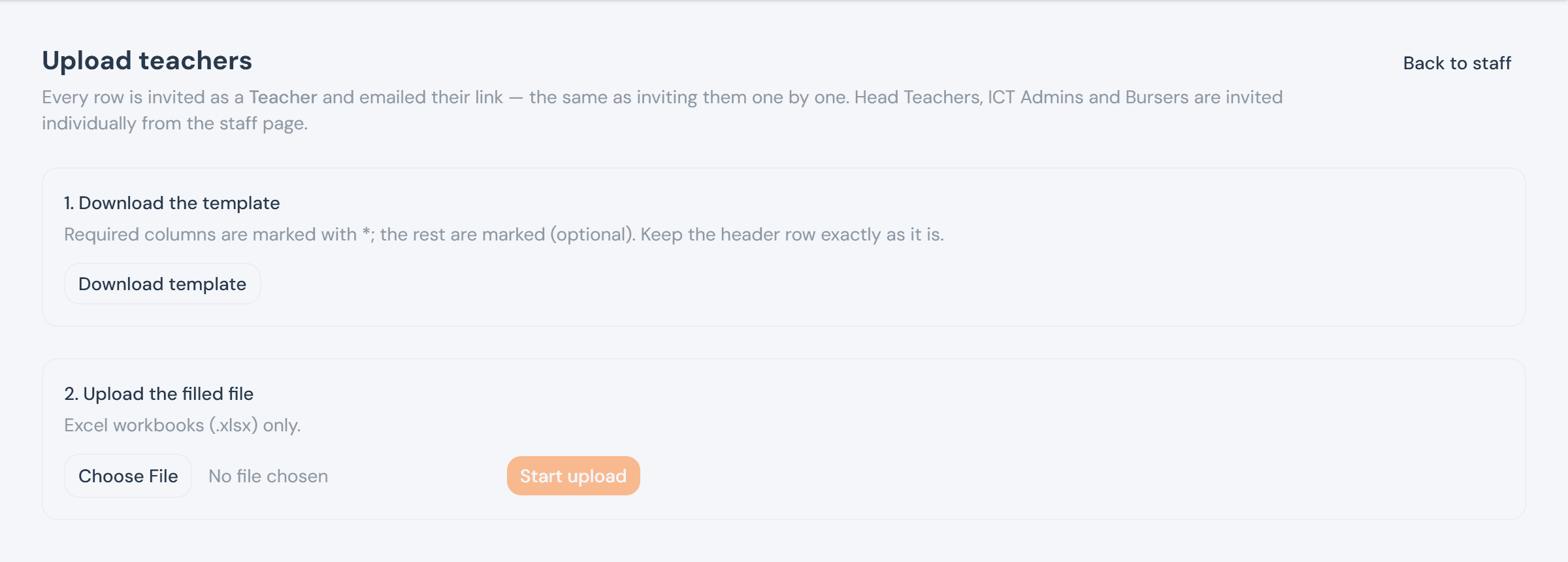
For onboarding a whole staff room at once, Staff → Upload teachers takes a spreadsheet instead of one form per person. Every row is invited as a Teacher and emailed its own link — there is no Role column on the sheet at all, so a spreadsheet passed around a staff room can never be used to hand out a more privileged account.
Assigning a class teacher
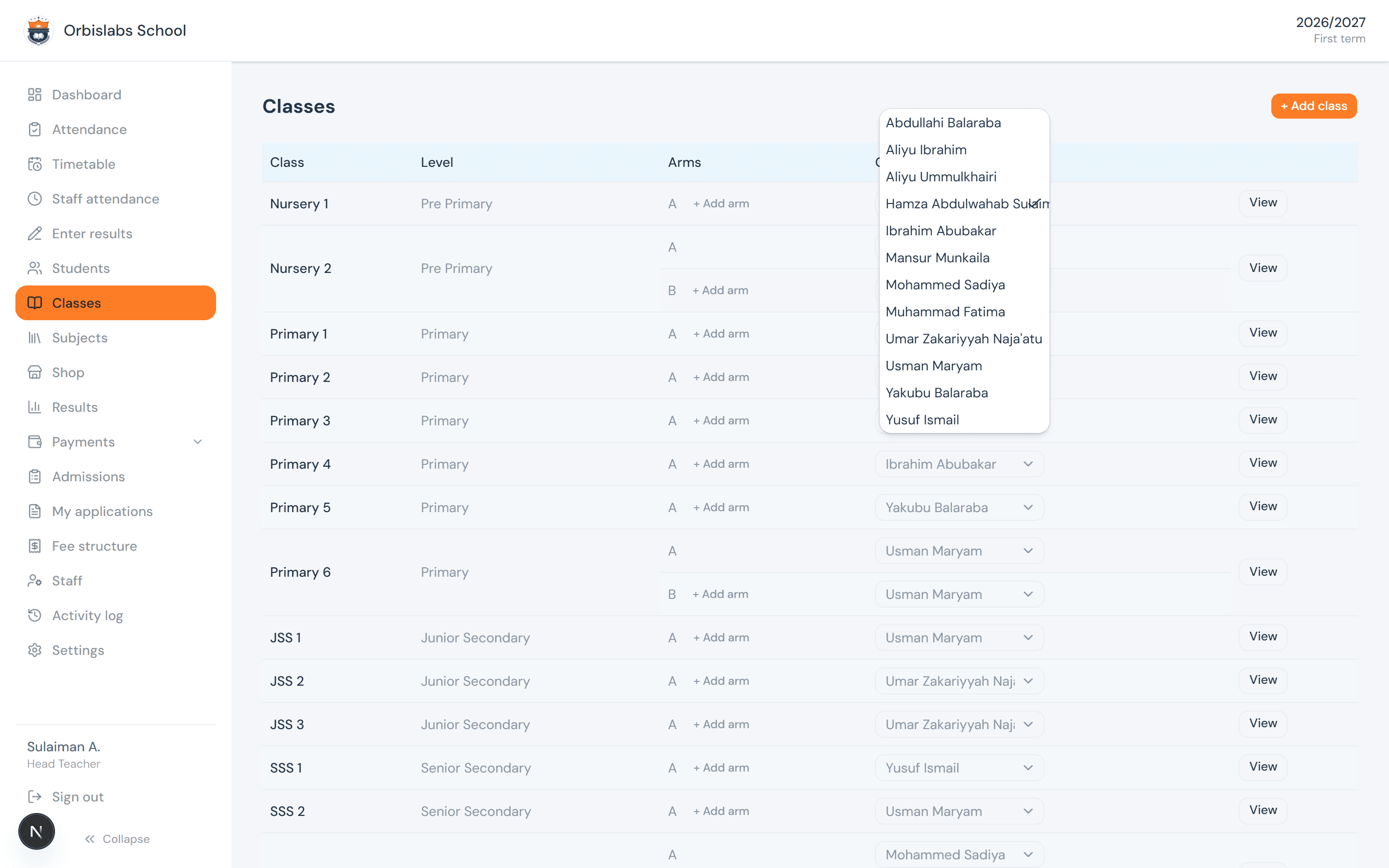
Staffing a class is a different authority from appointing officers, so it sits with the Head Teacher and ICT Admin, not the proprietor. From Classes, each arm gets a dropdown of active staff — any staff member is eligible, not only Teachers — to set or change its class teacher for the current term.