Branding, page design & contact info
Three settings pages that don't appear in the sidebar at all — reached only through cards on Settings itself, each gated to the proprietor alone. Everywhere else in this app, "admin" work is shared across the Head Teacher, ICT Admin, or both; these three are the exception.
Screens below are from a demo school's real, already-configured settings — its actual logo, brand color, chosen homepage layout, and (empty, unconfigured) contact details.
Who can do what
Branding, page design, and contact information are all gated by the same rule: proprietor only, full stop — not the Head Teacher, not the ICT Admin. The reasoning is identical for all three: a school's name, logo, public face, and how it's reached are ownership-level decisions, not delegated the way almost every other admin action in this app is.
Branding
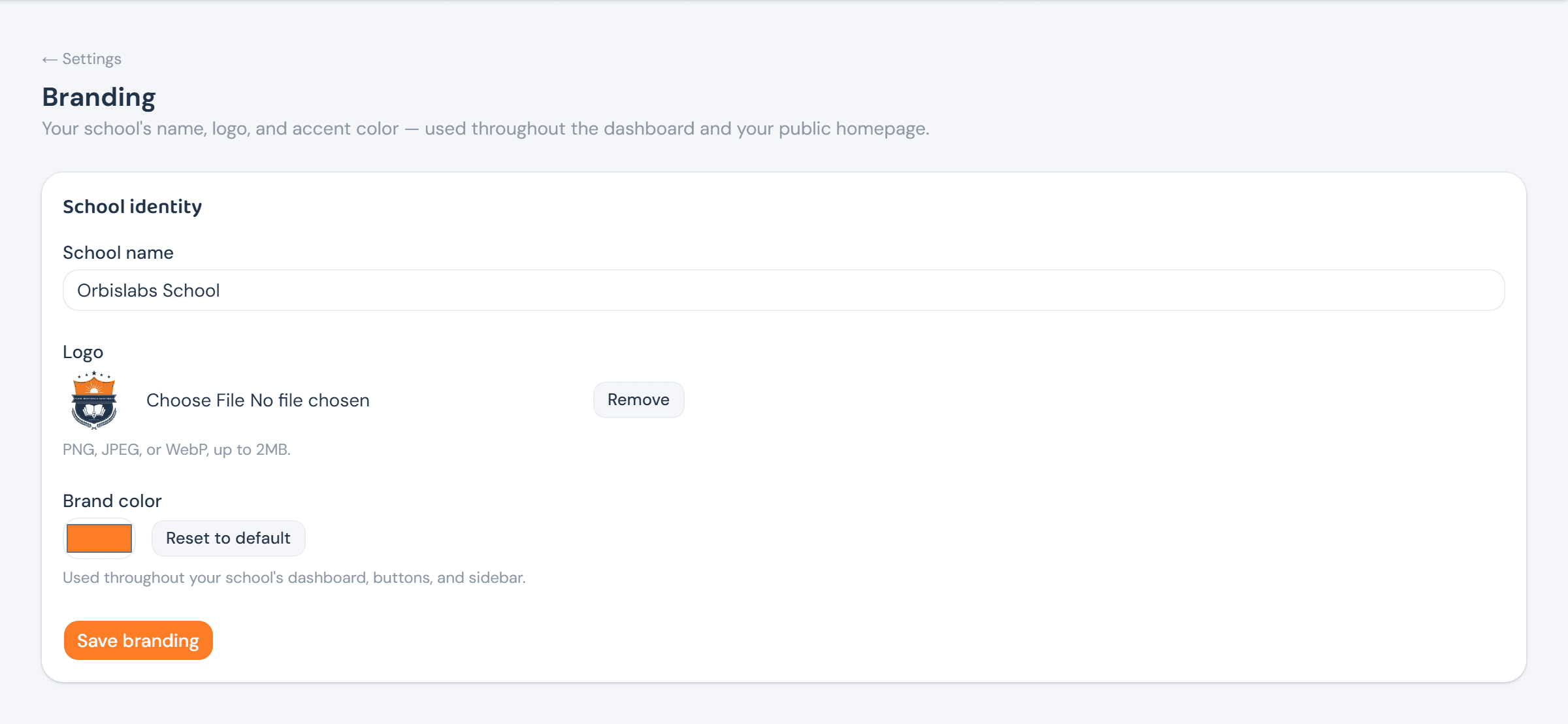
Branding sets three things, all used the moment they're saved: the school's name, its logo (shown in the sidebar and navbar throughout the dashboard), and a brand color that overrides the app's default blue everywhere — buttons, the sidebar's active-row highlight, links.
Page design
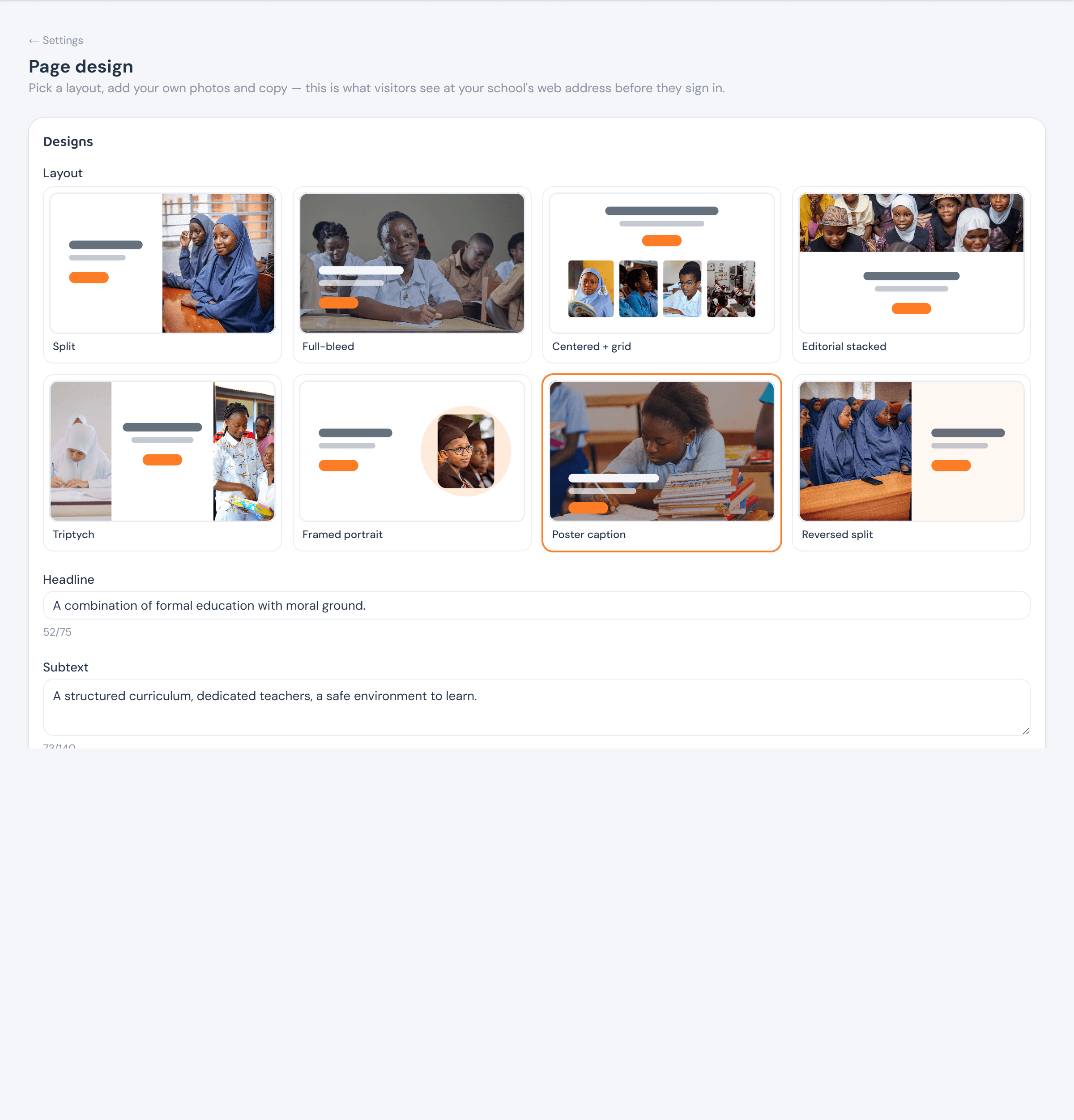
Page design is what a visitor sees at the school's own web address before ever logging in — a layout, a headline, subtext, and however many photos that layout calls for. Eight templates cover most looks a school might want; picking one reveals the fields it actually needs, with a live character counter against each one's own headline/subtext limit.
Preview Design (not shown here) opens the chosen layout exactly as a visitor would see it, mock "Create Account"/"Login" buttons included — disabled until every image slot the template needs actually has one.
Contact information
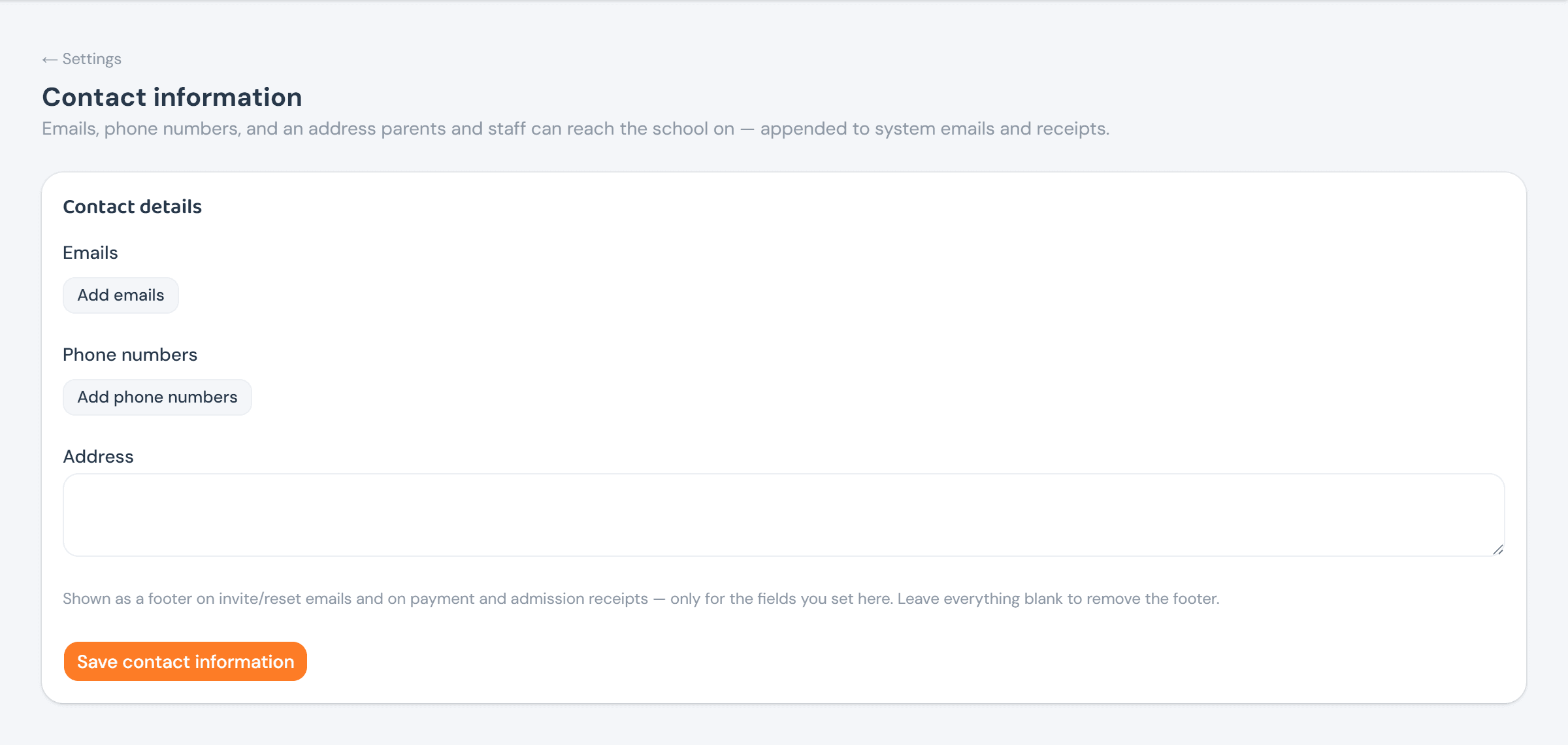
Contact information — emails, phone numbers, an address — is entirely optional, and appears only where it's actually set: as a footer on invite and password-reset emails, and on payment and admission receipts. Leaving every field blank removes that footer rather than showing an empty one.